 Frame Control
Your Steam Frame, managed from your desk.
Install Frame Control on your computer, not your headset. See what the Frame sees, install games and Android apps, move files and text across, and check battery and status.
Download → install and open → connect your headset. Setup guide
Latest: · All desktop downloads · iPhone developer build · Not affiliated with Valve
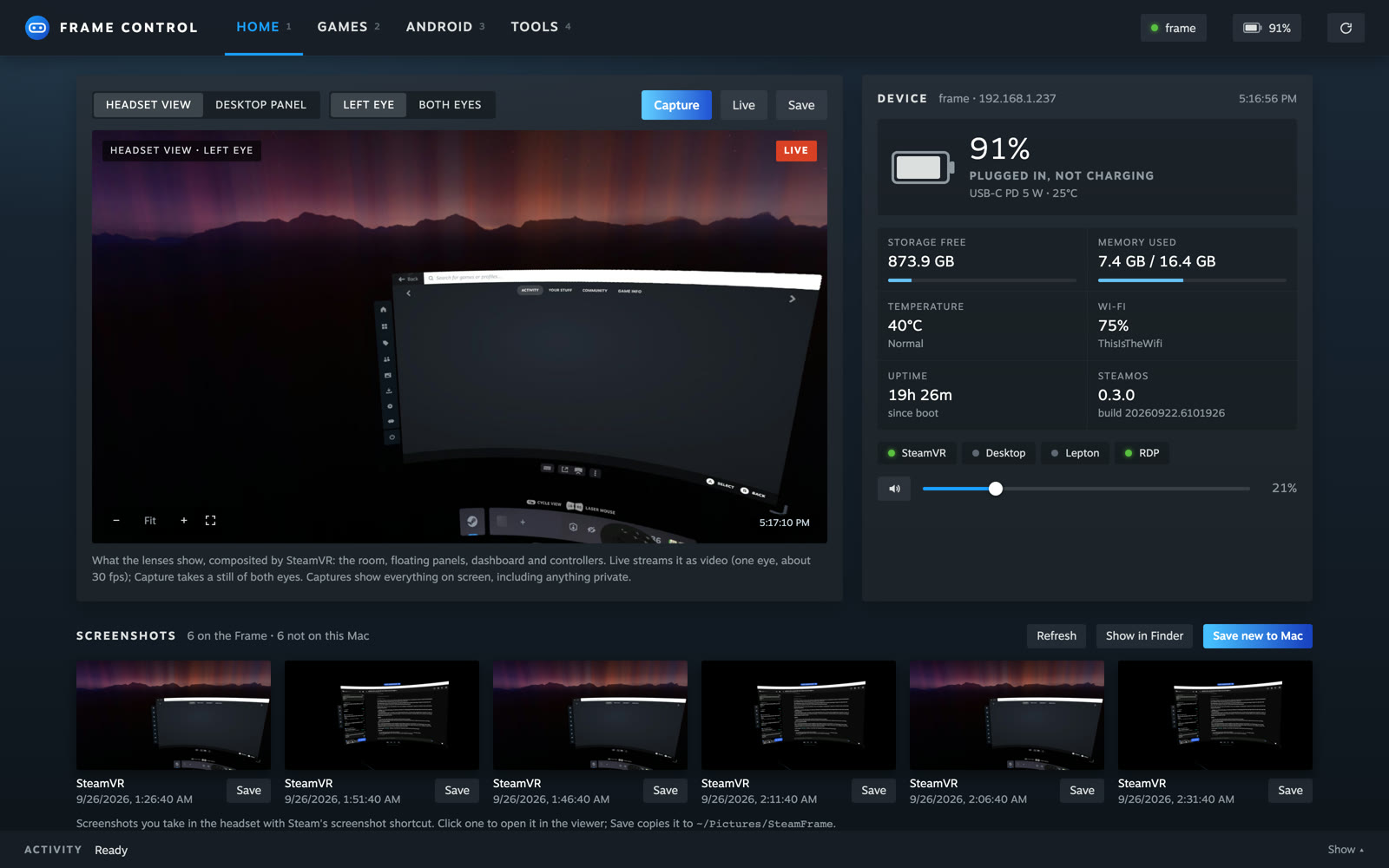
Sixty-six seconds of Frame Control
Recorded against a real Steam Frame. Turn the sound on.
Everything the headset needs, one window away
Frame Control uses what SteamOS already ships. It only changes what you click.
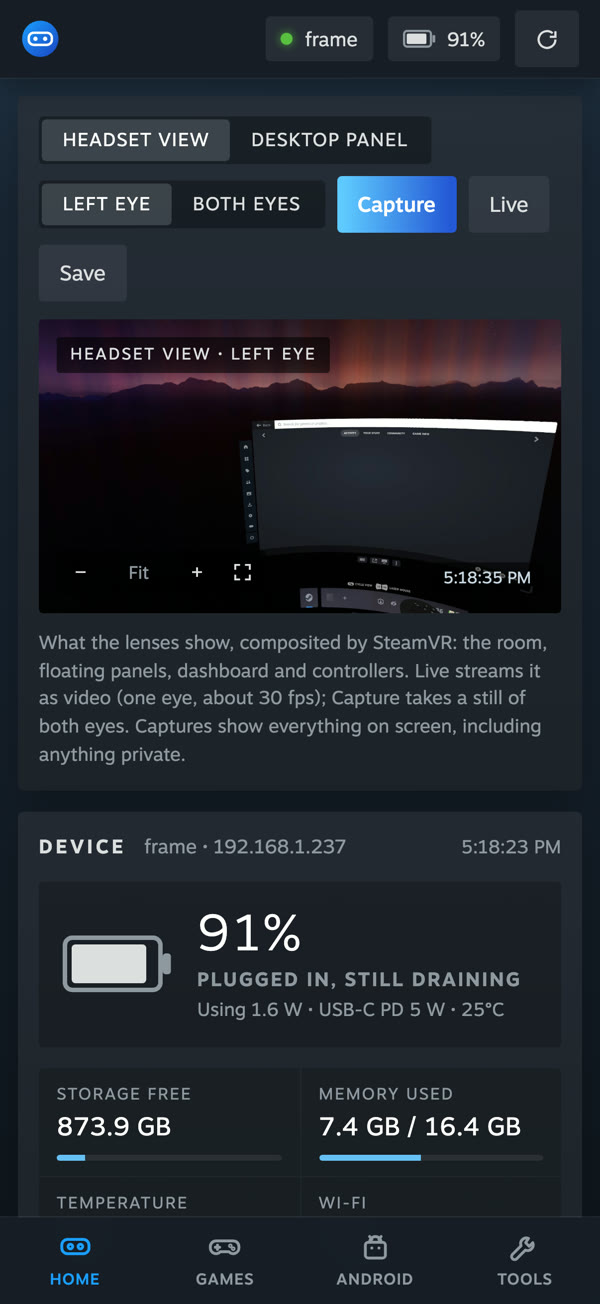
Headset view
Live video of what the lenses show at about 30 fps, or a still of both eyes. Zoom, pan, full screen, save as PNG.
Battery and status
Charge, charging watts and time left, storage, memory, temperature, Wi-Fi, and what's running.
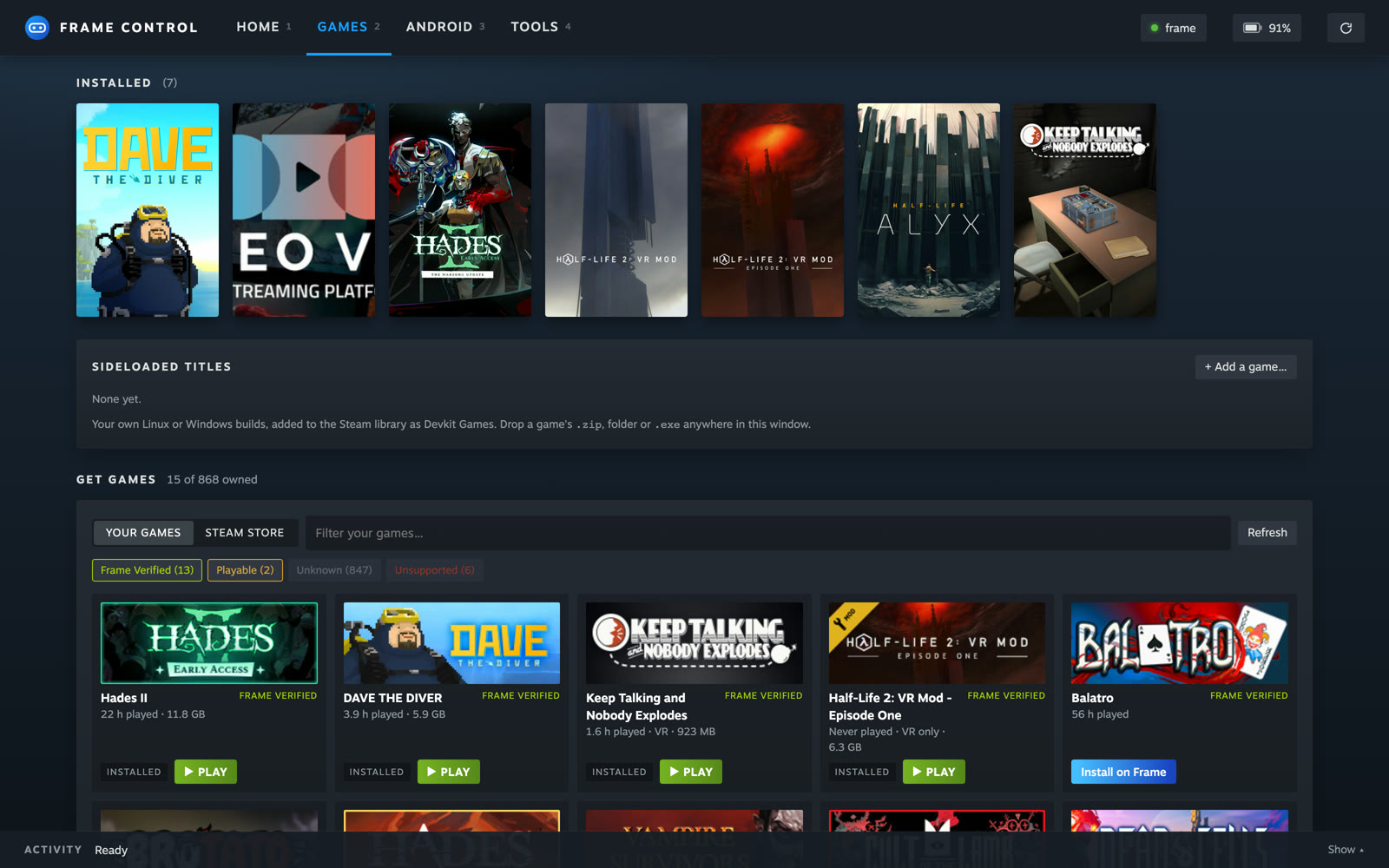
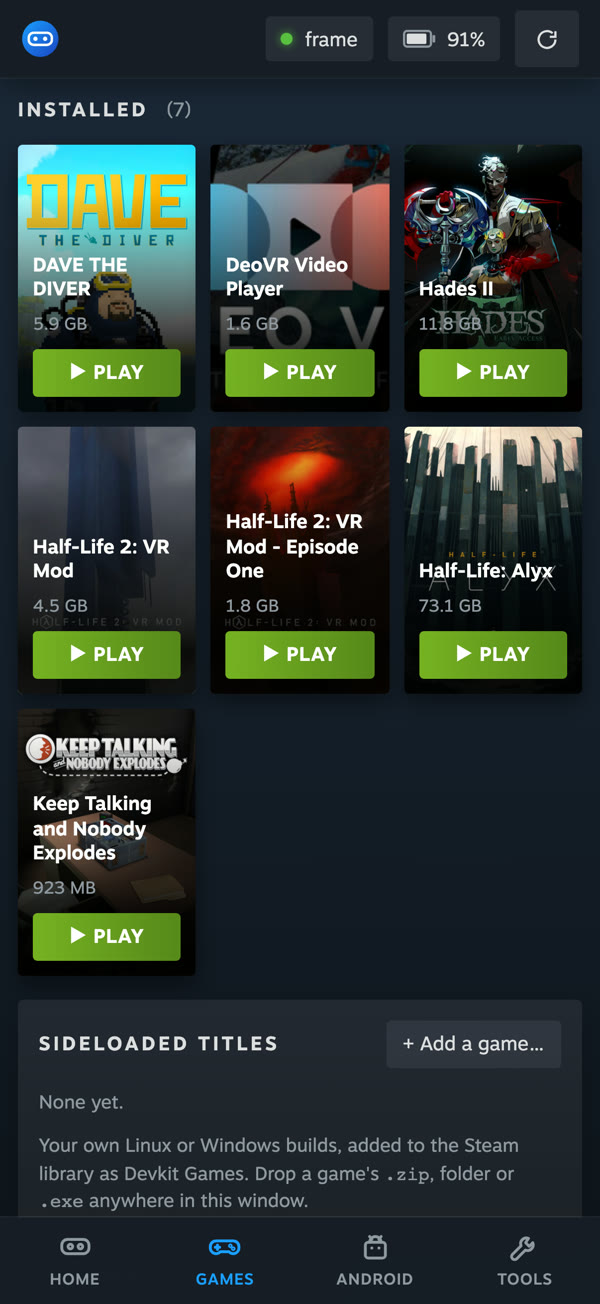
Steam games
Everything you own with its Steam Frame rating. Install onto the headset with live progress, and search the store.
Android apps
About 4,500 F-Droid apps rated for the Frame. One click installs each as its own app in your Steam library.
Files, games and clipboard
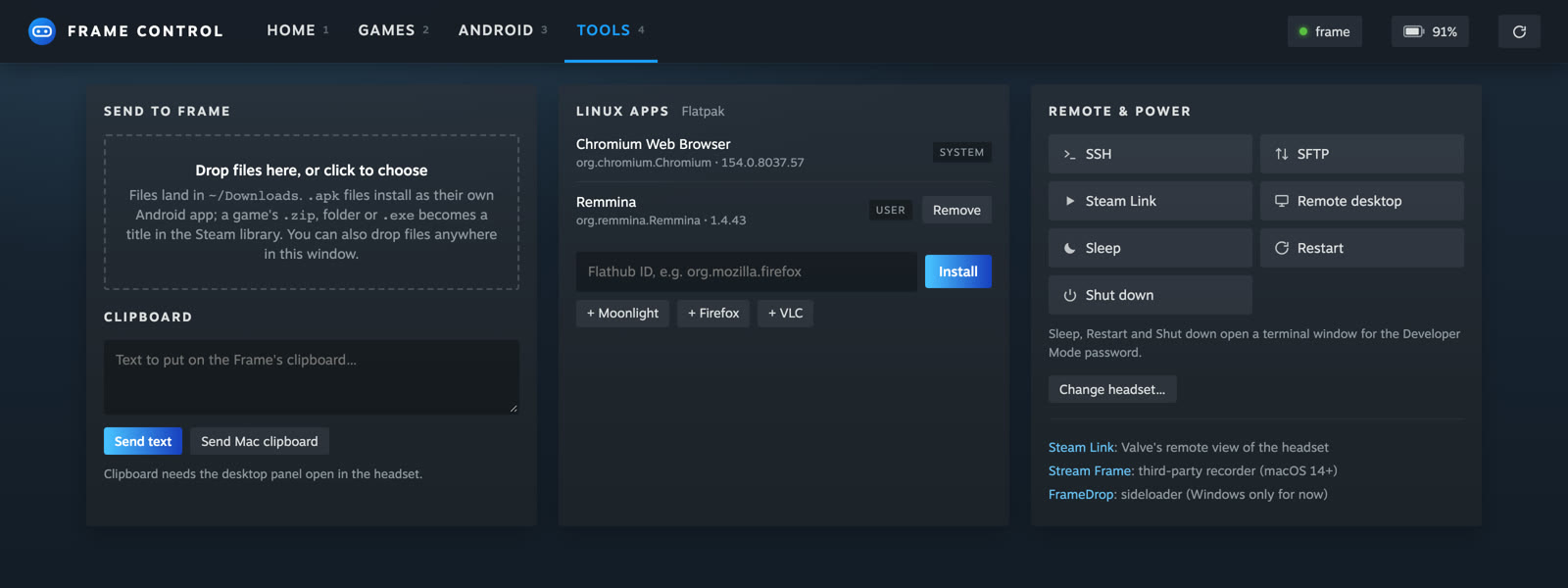
Drag files onto the window to send them. Drop a game's .zip, folder or .exe to add it to the Steam library. Send your clipboard to the headset's desktop.
Screenshots
Browse the shots you take in the headset and save them straight to your Pictures folder.
Flatpaks and display
Install desktop apps like Moonlight or VLC, and set each Android app's resolution and text size.
One-click tools
SSH, SFTP, Steam Link, remote desktop, volume, sleep, restart and shut down.
Your Steam library, rated for the Frame
See every game you own with how well it runs on the Frame, then install it onto the headset without putting it on.
- Live download progress, straight from the Steam client on the headset
- Search the Steam store from your computer
- Sideload your own Linux or Windows games, with Proton or the Linux runtime picked for you
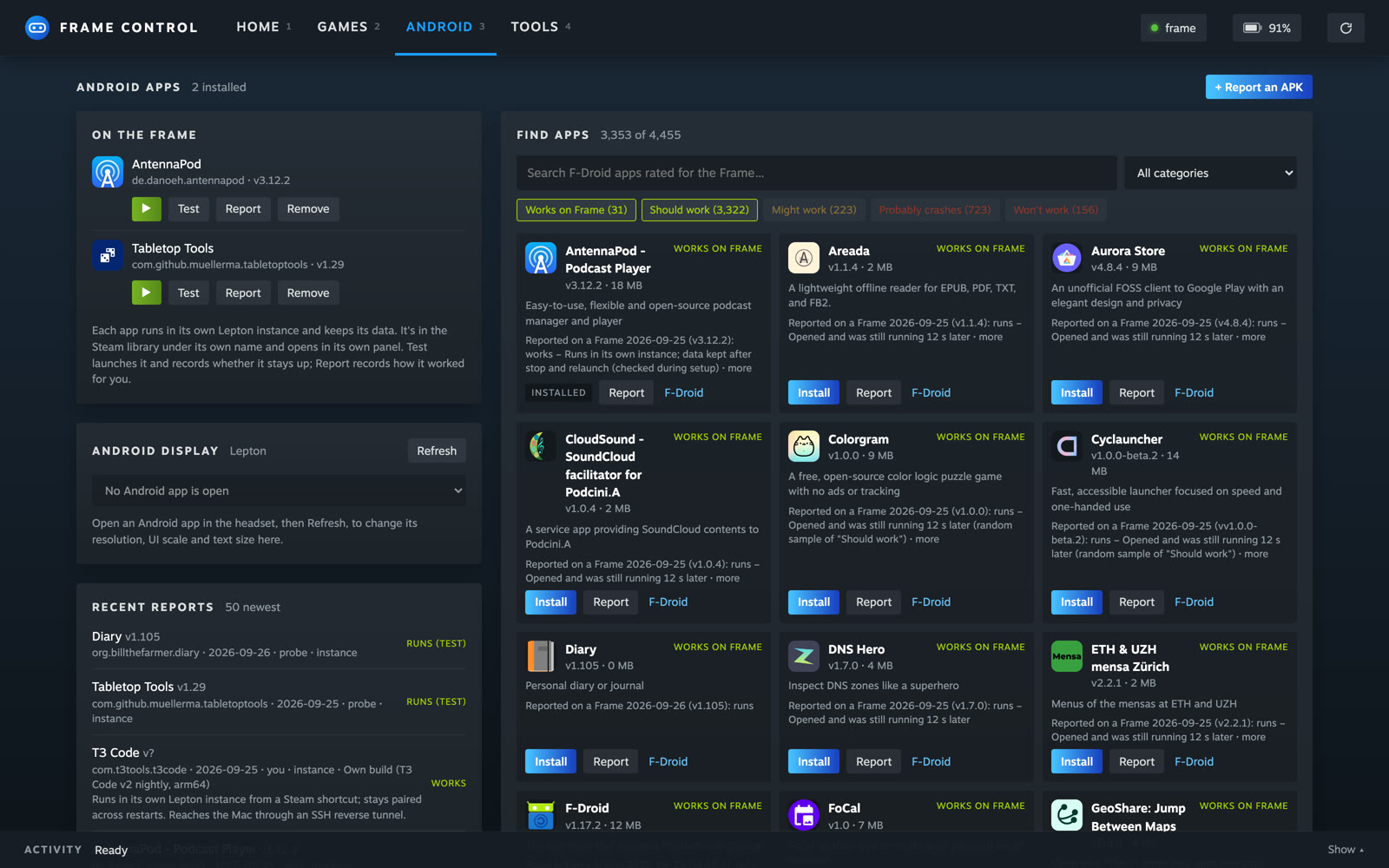
Android apps, one click each
A catalogue of about 4,500 F-Droid apps, each tested and rated on a real Frame. Every app gets its own Lepton instance and its own tile in your Steam library.
- Filter by what works on the Frame
- Install any APK you have, no Android SDK needed
- Set resolution and text size per app
The fiddly bits, done for you
Open an SSH session or SFTP, start Steam Link or remote desktop, change the volume, or put the headset to sleep, all from one tab.
iPhone: a separate developer build
Not an App Store download. This option requires a Mac and Xcode, and runs a server on the Frame instead of your computer. Read the iPhone build and pairing guide. For the simplest start, use the desktop app below.
From download to connected
You'll need a computer and a Steam Frame, both on the same trusted network. Keep the headset awake while connecting.
Install and open the app
Choose your computer's download below, install it, then open Frame Control. You don't install the desktop app on the headset, and you don't need to clone GitHub or install Python.
Turn on Developer Mode
On the Frame: Steam Settings → System → Enable Developer Mode, then Set User Password in the Developer section.
Set up the connection
In Frame Control, choose Set Up Connection and enter the headset's password when asked. It creates an SSH key so you don't have to type it next time.
Headset not found? Enter its IP address from the Frame's Quick Settings. For remote access, use Tailscale.
Get Frame Control
Download on your computer, then follow the opening steps on your card. Python and adb are included. Version . Release notes
macOS
Your systemOpen: open the .dmg, drag Frame Control to Applications, then open it from Applications.
Apple Silicon only, not Intel Macs. Unsigned and not notarized: read the first-launch instructions if macOS blocks it.
Windows
Your systemOpen: run the installer, then launch Frame Control from Start. For the portable .zip, extract it first and run Frame Control.exe.
Unsigned: read about SmartScreen before proceeding past a warning.
Linux
Your systemssh
Open: for an AppImage, use your file manager's Properties → Permissions to allow executing it, then open it. For a .deb, install it with your package manager and launch Frame Control.
Good questions
macOS says the app is damaged or can't be checked
The app isn't notarized, because there's no paid Apple developer account behind it. Drag it to Applications, then clear the download quarantine once in Terminal:
xattr -dr com.apple.quarantine "/Applications/Frame Control.app"
Windows SmartScreen says it protected my PC
The installer isn't code-signed. Choose More info → Run anyway, or use the portable .zip: unzip it anywhere and run Frame Control.exe.
Linux: the AppImage won't open
Make the file executable in your file manager, or in Terminal run chmod +x Frame-Control-linux-x86_64.AppImage and then ./Frame-Control-linux-x86_64.AppImage. On arm64, use the arm64 filename instead.
If FUSE is missing, use the .deb package or run the AppImage with --appimage-extract-and-run.
What does it change on my headset?
Only what you click. Installs go to your user account on the Frame, and nothing needs sudo except the power buttons. On your computer it adds a Host frame entry to ~/.ssh/config and two SSH keys.
Is it safe to leave Developer Mode on?
With Developer Mode on, SSH, ADB and remote desktop are reachable on your local network. Use trusted networks, turn Developer Mode off when you don't need it, and never port-forward those ports from your router. For remote access, use Tailscale. Security notes
Is this made by Valve?
No. It's an unofficial hobby project, free and MIT-licensed. Steam, Steam Frame and SteamVR are trademarks of Valve Corporation.
Tell us what you think
Found a bug, or want something added? Reports from Windows and Linux are especially useful. No GitHub account needed.
Send feedbackBuy me a coffee
Like it? Pass it on
Frame Control is free and always will be. If it saves you time, a coffee keeps it going.
Frame Control is free and always will be. The best way to help is to star the repo and tell a friend.
Support on Ko-fi Star on GitHub